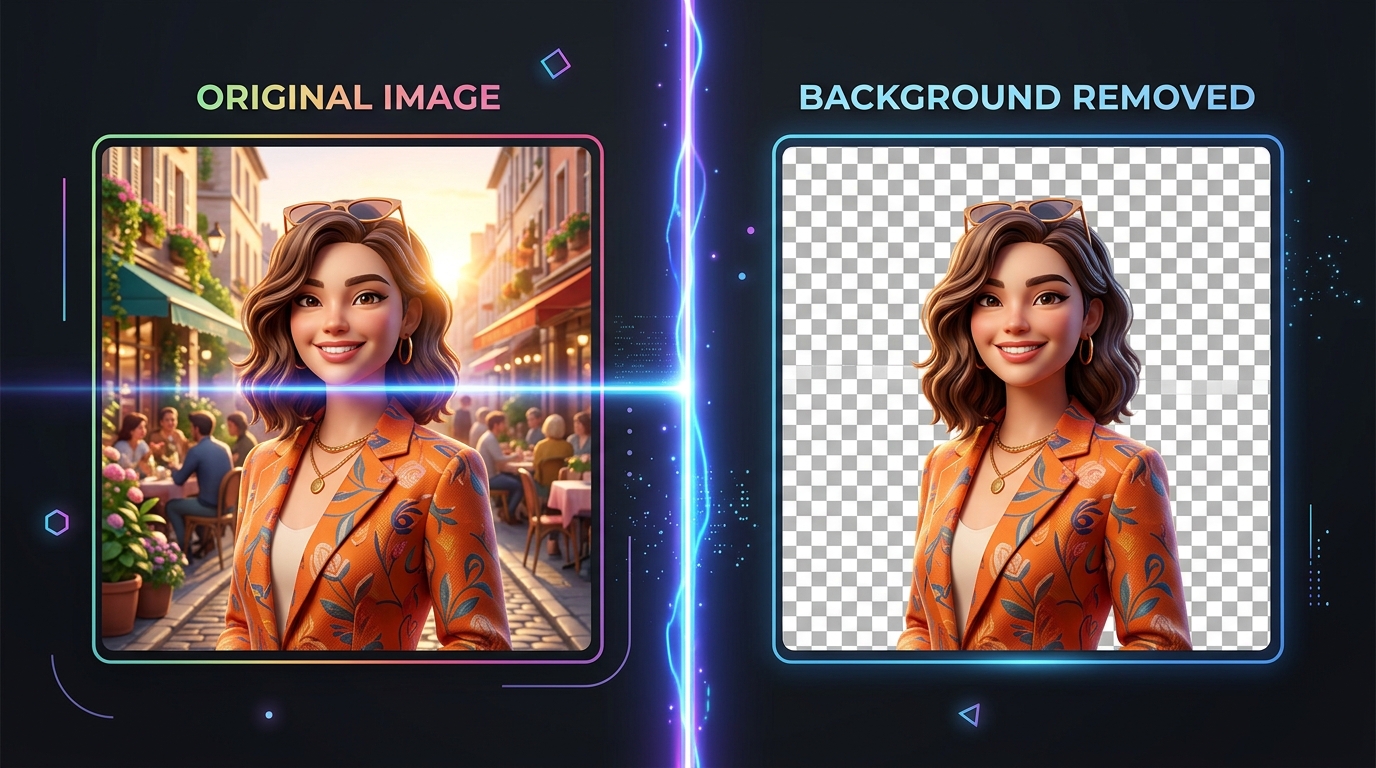
Whether you run an e-commerce storefront, design marketing materials, touch up a professional LinkedIn headshot, or create stickers and memes for social media, learning how to remove BG from image is one of the most valuable graphic design skills you can have.
In the past, extracting a clean subject from a cluttered background required mastering Adobe Photoshop’s Pen Tool, adjusting magnetic lassos, and spending 20 to 30 minutes carefully tracing fine edges and hair strands. Even worse, many modern web tools promise “free background removal” only to slap a watermark on your photo, blur it down to a low-res 500-pixel thumbnail, or demand an expensive monthly subscription.
Fortunately, modern browser-based artificial intelligence has completely revolutionized this workflow. In this guide, you will learn how to remove the background from any photo in under 5 seconds—completely free, in full HD resolution, and with zero privacy compromises.
Why Remove Backgrounds from Images?
Before diving into the steps, let’s explore why removing backgrounds is such a critical task across various industries:
1. E-Commerce Product Photography
Marketplaces like Amazon, eBay, Shopify, and Etsy have strict image requirements. Amazon, for example, requires the main product image to have a pure white background (#FFFFFF). Removing busy backgrounds instantly creates a clean, uniform catalog that boosts buyer trust and conversion rates.
2. Professional Headshots & Resumes
A portrait taken in a living room, office, or outdoor setting can be transformed into an executive headshot by replacing the distracting background with a subtle corporate gray, pure white, or soft portrait blur.
3. Marketing Creatives & Banners
Marketers and graphic designers frequently need isolated subject cutouts to place over promotional banners, sales announcements, YouTube thumbnails, and multi-layered advertisements.
4. Personal Avatars, Badges & Memes
From creating transparent Discord and Slack emojis to custom WhatsApp stickers, having a crisp transparent PNG gives you endless creative flexibility.
The Old Way vs. The Modern AI Way
Here is a quick look at how image background removal has transformed:
| Feature | Photoshop Manual Clipping | Traditional Cloud Cutout Sites | RemoveBGFromImage (Modern AI) |
|---|---|---|---|
| Time per image | 15 – 30 minutes | 5 – 10 seconds | Under 3 seconds |
| Learning Curve | High (Masking, Pen Tool) | Low | Zero (One click) |
| Cost | $239.88/year (Adobe CC) | $0.20 – $1.99 per image | 100% Free Forever |
| HD Resolution | Full resolution | Downgraded to 500px unless paid | Full HD / 4K Original |
| Privacy & Security | Local on computer | Uploaded to third-party servers | 100% In-Browser (Zero server upload) |
How to Remove BG from Image in 4 Easy Steps
With Remove BG From Image, you don’t need any graphic design experience or software installation. Everything runs directly inside your web browser using WebAssembly and high-precision neural networks.
Here is the step-by-step walkthrough:
Step 1: Upload or Drag & Drop Your Image
Navigate to removebgfromimage.com on your desktop, tablet, or smartphone.
You can load your image in three convenient ways:
- Click the “Upload Image” button to select a photo from your file browser or phone gallery.
- Drag and drop any image file directly onto the upload dropzone.
- Paste from clipboard using Ctrl + V (Windows) or Cmd + V (Mac) if you just took a screenshot or copied an image from the web.
Supported Formats: JPG, JPEG, PNG, and WebP images of any dimension or orientation.
Step 2: Let the AI Automatically Detect & Extract the Subject
The moment your image is selected, our client-side AI model initiates foreground-background segmentation:
- Bilateral edge recognition distinguishes the subject from complex backdrops.
- Alpha-matting algorithms analyze delicate boundaries such as flyaway hair strands, animal fur, glasses frames, and transparent glass edges.
- Within 2 to 3 seconds, the background is completely eliminated, revealing a transparent checkerboard pattern.
Because the AI runs locally on your device via WebAssembly, your image data never leaves your computer or phone. No servers see, store, or train on your private photos.
Step 3: Choose Your Background Style (Custom Colors or Blur)
Once your subject is isolated, our interactive built-in editor allows you to customize the output before downloading:
- Transparent Background (Default): Leaves the background completely empty, perfect for graphic designers and sticker creators.
- Pure White (
#FFFFFF): Ideal for Amazon, eBay, and Google Shopping product listings. - Studio Color Backdrops: Pick from curated studio palettes (slate gray, pastel blue, warm cream, soft pink, emerald, navy) or use the custom color picker for brand-specific hex codes.
- DSLR Portrait Blur: Keep your original background but apply a smooth optical bokeh effect that makes your subject pop like an 85mm f/1.4 lens photograph.
Step 4: Download Your HD Cutout in One Click
When you are satisfied with the result:
- Click the green “Download HD” button.
- Your image will download immediately at full original resolution as a 32-bit transparent PNG (or high-quality JPG if a solid background was chosen).
- No watermark, no email sign-up required, and no credit card requested.
Pro Tips for Getting Studio-Quality Cutouts
While modern AI is remarkably capable, keeping a few best practices in mind will ensure you achieve the sharpest, most natural-looking results:
1. Ensure Good Subject-to-Background Contrast
AI segmentation algorithms detect contrast gradients. A subject wearing a black shirt against a dark shadowy wall is more challenging than a subject standing against a lighter, evenly illuminated wall. Whenever possible, shoot with distinct separation between foreground and background.
2. Maintain Adequate Lighting
Avoid harsh backlight that blows out edge pixels or leaves dark, muddy silhouettes. Soft, diffused lighting creates clear contours that make edge detection pinpoint accurate.
3. Capture High-Resolution Originals
The higher the pixel count of your original file, the finer the detail the AI can preserve—especially in intricate areas like curly hair, pet whiskers, and fabric textures. Avoid screenshots of compressed thumbnails if you have access to the original camera file.
4. Select the Right File Format for Export
- Choose PNG if you need transparent layers for Figma, Canva, Photoshop, or web development.
- Choose JPG or WebP if you applied a solid white or color backdrop and plan to publish the image directly to an e-commerce website for faster page load times.
Common Mistakes to Avoid When Removing Backgrounds
- Using Low-Quality “Free” Tools with Watermarks: Many websites advertise free downloads but embed huge semi-transparent watermarks across the center of your image, ruining your marketing materials.
- Ignoring Edge Haloes: Older clipping algorithms often leave an ugly 1-pixel colored fringe (halo) around the subject. Our AI applies feathering and alpha matting to eliminate background color contamination.
- Uploading Confidential Photos to Cloud Servers: Many free services store uploaded photos on remote servers for AI model training or data collection. Always use privacy-first tools like removebgfromimage.com where processing happens directly in your browser.
Frequently Asked Questions (FAQ)
Can I remove backgrounds from photos on my phone?
Yes! Our tool is fully responsive and optimized for mobile Safari, Chrome, Samsung Internet, and Firefox. You can snap a photo with your iPhone or Android camera and remove the background instantly on the go.
Is there a file limit or daily quota?
No. You can process as many images as you need without hitting daily limits, paywalls, or credit token meters.
Does removing the background reduce image resolution?
No. Unlike other websites that downscale your 4000×3000px camera photos to a blurry 500×500px thumbnail, Remove BG From Image exports your cutout at full original pixel dimensions.
What kind of images work best?
Portraits, headshots, fashion model photos, e-commerce products (shoes, jewelry, apparel, electronics, cosmetics), pets (dogs, cats), cars, food, and logos all produce outstanding cutouts.
Ready to Remove BG from Your Image?
Stop wasting hours on tedious manual lassoing and stop paying expensive monthly subscription fees. Try the free HD background remover right now:
Topics covered in this guide
Written by Remove BG Team
Photo Editing & AI Specialist
The Remove BG engineering and design team is committed to making high-resolution image editing accessible, private, and 100% free for creators worldwide without hidden paywalls.